
Hi, we’re here to help
Find answers to all your questions.
Search results
How to understand your payslip
You receive a payslip each week for the shifts worked during the relevant period. The contract date determines which payslip a shift appears on, not the payment date. If a shift is approved after the Wednesday deadline, the original payslip is updated.
Each payslip consists of four sections:
- Basic information: general information about you and your contract.
- Gross amounts per assignment: your earnings and hours worked per shift.
- From gross to net: how your gross pay is converted into your net pay.
- Accruals overview: an overview of accrued amounts, such as holiday pay and leave allowances.
Below, we explain what the different items on your payslip mean.
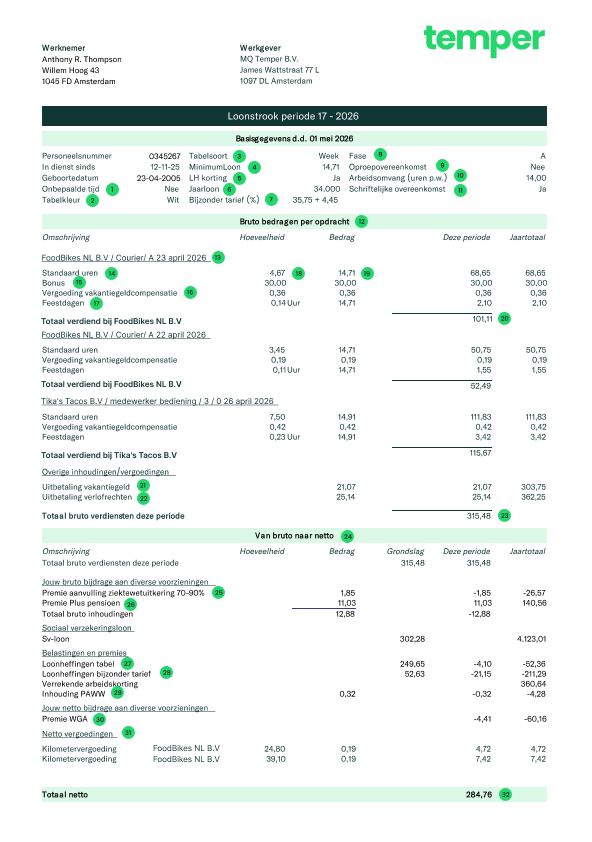
1 Onbepaalde tijd
This indicates whether you have a permanent employment contract. For Phase A contracts, this will always be No.
2 Tabelkleur
A white table represents income from your current employment.
3 Tabelsoort
This is the time period used for your payslip.
4 Minimumloon
This is the legal minimum wage. See the current minimum wage here.
5 LH korting
This indicates whether you have activated payroll tax credit.
6 Jaarloon
The estimated fiscal annual salary, calculated based on this payslip.
7 Bijzonder tarief (%)
The special rate is a higher tax percentage that you pay on holiday work, overtime or bonuses.
8 Fase
This is the staffing phase of your contract. For new flex workers, this is Phase A.
9 Oproepovereenkomst
This refers to a contract where you only work when called upon, which does not apply to Temper.
10 Arbeidsomvang (uren p.w.)
The number of hours specified in your contract.
11 Schriftelijke overeenkomst
‘Yes’ indicates that a written employment contract has been established.
12 Bruto bedragen per opdracht
The gross amounts earned for each assignment.
13 Shift information
The company and date the shift took place.
14 Standaard uren
The number of hours worked and the base wage for this period.
15 Bonus
This indicates whether you received a bonus during your shift.
16 Vergoeding vakantiegeld compensatie
This line can be used to indicate a temporary correction related to a change in holiday pay rules.
17 Feestdagen
This is your accrued compensation for public holidays, based on hours worked this period.
18 Gewerkte uren
The total number of hours you worked.
19 Bedrag
This is the base hourly rate, excluding additional benefits. The amount shown on the shift page includes holiday pay, holiday allowance and other additional benefits.
20 Totaal verdiend bij
Your gross earnings for this shift, excluding holiday pay and accrued leave entitlements.
21 Uitbetaling vakantiegeld
The holiday pay you accrued during this period. It is paid out immediately.
22 Uitbetaling verlofrechten
The leave entitlements you accrued during this period. These are paid out immediately.
23 Totaal bruto verdiensten deze periode
Your total gross earnings for this period.
24 Van bruto naar netto
From gross to net. The calculation below shows how your net pay is calculated.
25 Premie aanvulling ziektewetuitkering 70–90%
A deduction from your salary to receive a higher percentage of your income, such as 90% instead of 70%, during illness.
26 Premie Plus pensioen
You pay a small part of your salary towards your pension. Temper adds extra pension contributions to your StiPP pension.
27 Loonheffingen tabel
This shows how much tax has been withheld from your salary. If you apply the payroll tax credit, less tax will be withheld from your salary, so this amount will be lower.
28 Loonheffing bijzonder tarief
The special tax rate is a higher tax rate that you pay on holiday work, overtime or bonuses. Payroll tax credits do not apply to this.
29 Inhouding PAWW
A deduction from your salary to cover the PAWW premium, which provides additional income if your WW or WGA benefit ends before you can return to work.
30 Premie WGA
A contribution towards insurance that provides income support if you become partially unable to work after a long-term illness.
31 Netto vergoedingen
Reimbursements you receive net, such as travel expenses.
32 Totaal netto
Your net income for this period.
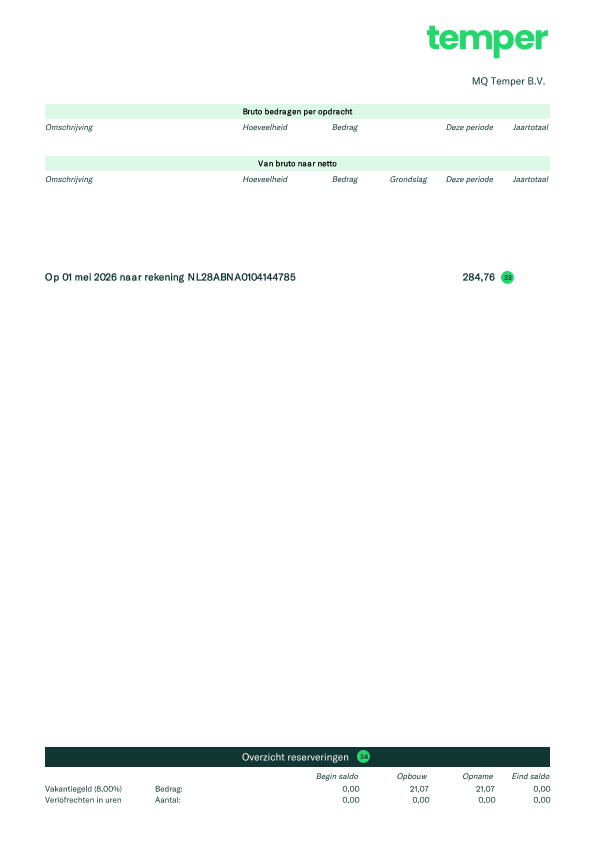
33 Naar rekening
The amount transferred to you. If you received more than the net amount, it’s possible that a payment from another period was included.
34 Overzicht reserveringen
An overview of the amounts you have accrued, such as holiday pay and leave entitlements. These amounts are paid out directly with your salary.
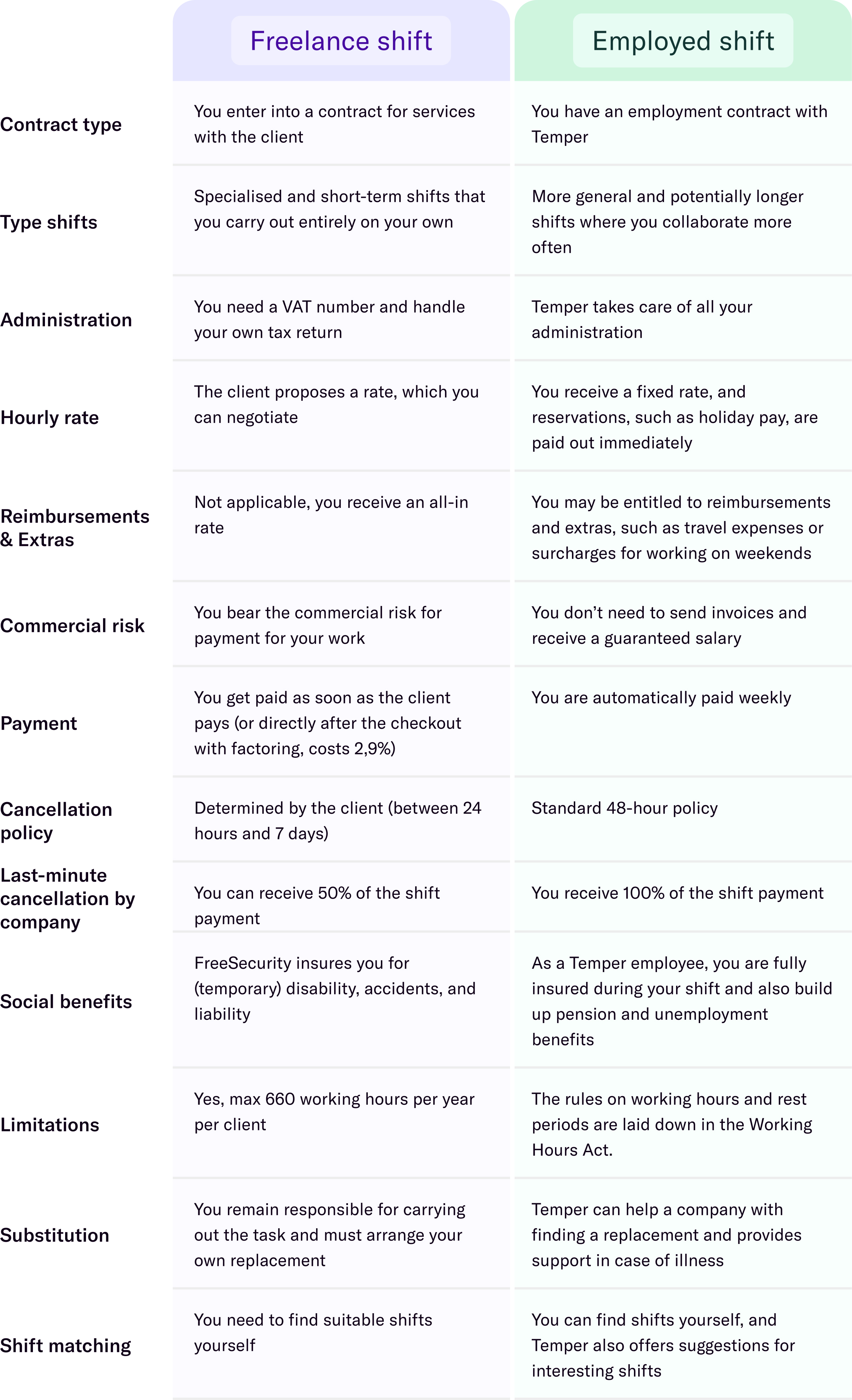
What are the differences between freelance shifts and employed shifts?
How does invoicing work with substitution shifts?
If you arrange for a substitute to cover one of your shifts, they work on your behalf. This means the agreement with the client remains in your name, while you hire the substitute to complete the shift.
From an administrative perspective, you invoice the client, and the substitute invoices you. To keep things simple, this process is handled automatically.
Invoicing
In your financial overview, you'll see two invoices whenever one of your shifts has been substituted: your invoice to the client and the substitute's invoice to you.
The substitute will only see one invoice in their financial overview: their invoice to you.
Business details on the invoice
Please note that the substitute's invoice will include your VAT ID and, if applicable, your KvK number and company address. This is required to comply with the requirements of the Belastingdienst (Tax Administration).
Payment
Once the client has paid the collective invoice, the payment is automatically transferred to your substitute. At the same time, both invoices in your financial overview will be marked as Paid.
You'll also receive a transaction statement showing both invoices. Because the invoices are for the same amount, they offset each other, resulting in a net payment of €0 to you.
Administration and VAT return
Make sure to keep both invoices, as they form part of your administration and must be included in your VAT return.
Read more about substitute costs here.
Which collective labour agreement is relevant for me?
For employed shifts, a collective labour agreement (CAO) is determined for each company and role.
For freelance shifts, a collective labour agreement (CAO) never applies, as you work as a freelancer rather than in an employment relationship.
What is a CAO?
A CAO is a set of agreements between employers and employees about working conditions. It outlines the rules and conditions that apply to your specific job, including salary, working hours, and other important terms.
It ensures everyone understands their rights and responsibilities at work. CAOs help create fair working conditions and protect both employees and employers.
Find your CAO
Your specific CAO is shown on the shift page and in your contract, but you can also view all relevant CAOs via this government link: Collectieve Arbeidsovereenkomsten
Use a translation tool to translate it into English.
I’m already registered with the Chamber of Commerce (KvK), what now?
If you are already registered with the KvK (Chamber of Commerce), you should automatically receive a VAT ID. You can easily add your KvK number and VAT ID to your profile and apply for freelance shifts.
Add activities to your business description
The KvK wants to know which activities your business performs. It’s possible that your current description doesn’t fully match the work you will be doing through our platform.
Download Form 14 from the KvK website to remove or add business activities. An example of an activity is: “Catering and hospitality services”.
How do flexible start and end times for freelance shifts work?
Companies can post freelance shifts without fixed times. They set an expected start and end time, which may vary by up to 3 hours from the original schedule.
How can you tell if a shift is flexible?
On the shift page, you’ll see the original times along with a note showing within which time window the start and end times may still change.
When are the times final?
The client can update and/or confirm the times once, up until the cancellation period begins. You’ll only receive an email if the client changes the times. If there are no changes, the original times apply and you won’t get an email.
Once the cancellation period starts, the times are locked in and can’t be changed anymore. Be sure to check your dashboard before the cancellation term begins so you know the final times.
Do I need experience to start working via Temper?
To get started with Temper, you don’t always need experience. It depends on the company posting the shift and what they’re looking for.
You can find this information in the shift description, so make sure to read it carefully. If, upon arrival, it turns out that you do not meet the requirements, the company may refuse your shift and register you as a no-show.
Not sure if a shift is the right fit for you? You can always reach out to the company to double-check.
Do I receive an annual statement for my shifts?
For both employed and freelance shifts, you need to file an income tax return. But you will only receive an annual statement for employed shifts.
How does the small business scheme (KOR) work?
As a self-employed, you can register for the small business scheme (KOR) and be exempt from VAT. This means you don’t have to charge VAT to clients for your freelance shifts and don’t need to submit VAT returns.
There are important conditions tied to the KOR, such as your turnover not exceeding €20,000.
Is it worth using the KOR?
Do you find VAT returns tricky? The KOR can help, as you won’t have to submit quarterly VAT returns anymore. The downside is that you cannot reclaim VAT on business expenses.
How do I register for the KOR?
You can sign up via the Belastingdienst (Tax Administration).
If you sign up at least 4 weeks before the end of the quarter, the KOR will become effective as of the following quarter. You’ll receive a letter from the Belastingdienst confirming the start date.
How do I change the KOR setting at Temper?
You can easily enable KOR in your profile. Go to the payment details section in your account and activate KOR there. Make sure the change takes effect on the same date your KOR starts with the Belastingdienst.
Once it has been activated, you won’t be able to switch it off yourself. If you need to disable it later, please contact support, and we’ll take care of it for you.
How does substitution work with the KOR?
You can only substitute someone (or the other way around) who meets the same tax conditions as you. This means that if you’re using the KOR, your substitute must also be using the KOR.
I can’t change the KOR setting
You can only enable KOR once, after that any changes go through Support.
Make sure you have a valid VAT ID and that you haven’t applied for a substitute shift or are currently looking for a substitute. If it still doesn’t work, contact support.
Not sure if you can use the KOR? Check with the Belastingdienst.
Why is 'DirectPay' not available?
Sometimes DirectPay might not be available for a particular shift. This depends on the client’s credit.
Client’s credit
Clients can post as many shifts as they want, but DirectPay is only possible if they have enough credit. Finqle provides clients with a certain amount of credit. This is the amount that they’re willing to advance to flex workers for Freelance shifts. Keep in mind that when you choose for DirectPay, Finqle pays you immediately (for a fee of 2.9% of the invoice amount), but in turn waits for the client to pay and takes on the credit risk.
Why is DirectPay not available?
Every time a flex worker chooses DirectPay, the invoice amount is deducted from the client’s available credit. If the credit runs out, DirectPay will temporarily no longer be available.
How do I know if DirectPay is possible?
DirectPay is available for all shifts unless it says otherwise. So always check when signing up whether it says “DirectPay not available.”
What if the client’s credit status changes after I signed up for a shift?
In that case, Finqle will send you an email letting you know that DirectPay is no longer possible.
You can still cancel the shift up to 12 hours before it starts. If you don’t cancel in time, you won’t be able to choose DirectPay at checkout and you will have to wait for the clients payment and take on the debtor risk yourself.
Note: If the shift starts within 12 hours or has already passed, you won’t receive an email and the old conditions apply.
How am I rated for a shift?
After every shift, the company you worked for leaves you a rating: a thumbs up, a thumbs down, or even two thumbs up
On your profile, companies can see your overall average rating across all your shifts, as well as your average per category, like serving, independent chef, order picker, or delivery.
This helps you stand out and shows companies what you’re great at when they’re choosing between multiple applicants.
What does each thumb mean?
👎 Thumbs down: There was a problem.
👍 Thumbs up: You did well.
👍👍 Two thumbs up: You really impressed!
We use these ratings to calculate an overall score for you, which helps us match you with the right shifts.
Already have ratings as a freelancer in the old freelance platform?
If you worked through the freelance platform before, you might’ve received 1 to 5-star ratings. We’ll take these ratings over to the new platform.
Here’s how those stars convert into thumbs:
- 1 to 3 stars → 👎 Thumbs down
- 3.5 to 4.5 stars → 👍 Thumbs up
- 5 stars → either 👍 or 👍👍, depending on how you compare to others in the same job. Top performers with lots of 5-star reviews get 👍👍.
So your past experience still counts, we just show it a bit differently now!
How can I request my VAT ID?
You can try out one freelance shift through our platform without needing a VAT ID. Enjoyed it and want to keep going? You’ll officially need to become a self-employed entrepreneur and get a VAT ID.
There are two ways to do this: via the OSO form (Opgaaf Startende Onderneming), via the Belastingsdienst (Tax Administration) or by registering with the KvK (Chamber of Commerce).
Option 1: Using the OSO form
If you only plan to work occasionally or aren’t sure how often you’ll work, you can use the OSO form from the Belastingdienst to request a VAT ID. This usually takes 2–3 weeks and is free. You can sign the OSO form online. Read more about it on the website of the Belastingdienst, use a translation tool to translate it to English.
We’re happy to help! If you send your OSO form to us first, we’ll check it before submitting it to the Belastingdienst.
How it works:
- Request a VAT ID. You can find the form here. If the link doesn’t work, you’re either not logged in or don’t have an account yet.
- Wait a few days. Within 5 working days, you’ll hear from us whether your form is complete or if anything is missing. If something’s missing, just fix it and send it back.
- You’ll receive a confirmation in your mail. Your form is all set. We’ll send your application to the Belastingdienst on your behalf. While they process it, you can work up to 3 times.
- You’ll receive your VAT ID at home. Once the Belastingdienst approves your application, you’ll get a VAT ID and VAT number. Add your VAT ID to your profile and you can take on as many freelance shifts as you want. Woohoo!
If you plan to work freelance shifts regularly, you might need to register with the Chamber of Commerce first. Keep reading before applying via the OSO form.
Option 2: Through the Chamber of Commerce (KvK)
If you’ll working freelance shifts regularly, you might be required to register your business with the KvK.
- Book an appointment at a KvK office. No slots available? Try another office. You’ll get a KvK number at your appointment.
- Within 2 weeks, the Belastingdienst will send you a VAT ID and VAT number. Add your VAT ID to your profile, and you can pick up as many freelance shifts as you want.
Registering a with the KvK costs €82.25. Don’t worry, you’ll earn that back in just a few shifts! Plus, these costs are deductible, so you might even get some tax benefits.
Once you’ve added your personal VAT ID, you can apply for shifts and you can get paid. Important! Finqle, can’t process payments if your information is missing or incorrect.
As an entrepreneur, you’ll need to submit a VAT return (also called a turnover tax return) every quarter and pay the VAT. Unless you are registered for the KOR.